How to Create Password Protected Folder in Android Phone
Use Private Space or a manufacturer secure container if available, Files by Google Safe Folder for selected files, or a dedicated vault app. Do not assume a hidden folder is encrypted.
Android does not give every ordinary folder its own password field. The practical options are a built-in private area, a protected file feature such as Safe Folder, or a dedicated vault app when you need a separate lock and a clearer boundary around sensitive files.
This guide shows what each option actually protects, how to set it up, and how to verify that your files are not still exposed through the normal gallery, file manager, cloud sync, or removable storage.
To make a password protected folder on Android, first check for a built-in private space or secure container. If your phone does not provide one, use Files by Google Safe Folder for selected files or a trusted vault app for a dedicated protected area. A normal folder you create in a file manager is not automatically password protected.
A good setup begins with the phone's own screen lock, enough free storage to move or copy sensitive files, and a clear decision about whether you need simple privacy from casual access or stronger protection for files that may leave the phone.
The wording changes, but the decision is the same: create a normal folder only for organization, or create a protected area when you need authentication before viewing the contents.

Use Private Space or a manufacturer secure container if available, Files by Google Safe Folder for selected files, or a dedicated vault app. Do not assume a hidden folder is encrypted.
Open the file manager, choose a location, tap New or Add, choose Folder, and name it. This creates organization, not a password lock.
The steps are usually in the file manager's menu. After creating it, move files into a protected feature if the folder contains private material.
Android devices can expose privacy features differently because manufacturers, Android versions, and file-manager apps are not identical. On some phones, a private system area can isolate apps and their data. On others, the most practical built-in option for individual files is a Safe Folder feature inside a file-management app.
Google's current Android Help documents a Private Space feature on supported devices, including a separate lock option and the ability to add files into the private area. For device-specific availability, use the privacy controls actually exposed in your Settings app. Read Android Help on Private Space.
There are three useful security levels: built-in private areas, protected file folders, and dedicated vault apps. Pick the lightest method that still protects against the risk you actually care about.

On supported Android devices, a system private area is the cleanest no-extra-app route because it creates a boundary managed by the operating system. The exact feature name and behavior depend on your device.
If Files by Google is installed and Safe Folder is available, it provides a practical protected location for files. You move files into the protected area and unlock that area when you need them.
A dedicated vault app is useful when you want privacy features that stay consistent even when your phone does not expose the same built-in secure-folder controls as another Android device. The important question is whether the app protects the content in a private vault and whether its recovery model is clear.
Troubleshooting should preserve the owner's data first. If a fix might reset a protected area, treat it as destructive until the product or device documentation says otherwise.
| Problem | Likely cause | Safe fix |
|---|---|---|
| The folder is still visible in Gallery | A copy remains outside the protected area or cloud sync restored it. | Compare filenames and storage locations. Remove only the unprotected duplicate after confirming the protected copy opens correctly. |
| The protected folder keeps asking to unlock | Auto-lock, device restart, timeout, or app process reset. | Review the protected feature's auto-lock setting. Do not disable the lock merely to remove the prompt. |
| You forgot the protected-area password | Recovery information was not configured or the feature intentionally has limited recovery. | Use official account recovery, saved recovery data, or vendor support. Avoid reset/delete options until you know whether local data will be erased. |
| Files cannot be moved from SD card | Storage permissions, removable-media restrictions, or app limitations. | Test with one non-critical file, confirm storage permission, and use the app's import/move command rather than moving protected internals manually. |
| A file disappeared after moving it | The move succeeded and removed the original, or the operation was interrupted. | Open the protected area first. If the file is there and opens correctly, the behavior is expected. If not, stop making changes and check app/device support. |
| The file opens elsewhere without a password | An unprotected duplicate exists or the method hides rather than encrypts. | Identify the exact copy being opened. Remove stale duplicates and choose a method that provides the level of protection you need. |
If recovery is uncertain, stop before resetting anything. A protected folder is doing its job when it refuses access without the expected credential.
Protection is not complete until you test the result from outside the protected area.
A hidden directory can reduce casual visibility, but it is not the same as authenticated or encrypted storage.
Importing into a vault may create a protected copy while the original remains visible elsewhere.
A separate vault lock has more value when it is not identical to the credential already used to unlock the device.
A cloud service can sync an unprotected original even after you protect a local copy. Verify the full path your files take.
Built-in Android privacy tools are a sensible first choice when they already cover your device and file types. We recommend Folder Lock for Android when you want one dedicated privacy workspace for different kinds of personal content instead of relying on a mix of manufacturer-specific features.
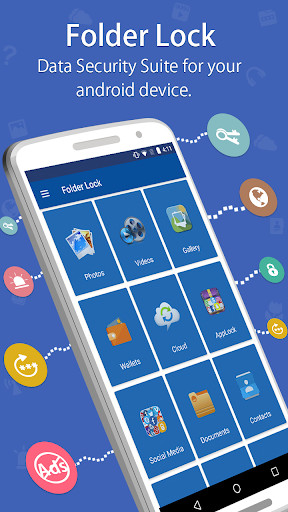
The Android version described in the supplied product material can hold private photos, video, documents and audio, and it also provides protected areas for notes, credentials and wallet-style records. It can add a lock in front of selected apps, record unsuccessful access attempts, back up encrypted data to supported cloud services, and open web sessions in a privacy-focused in-app browser.
A dedicated vault adds another account, permission set and recovery path to manage. It also does not make every copy of a file elsewhere on the phone or in the cloud private automatically, so duplicate checking still matters.
This page stays Android-focused. Manufacturer names appear only to explain why the same menu is not present on every Android phone.
Compatible Galaxy phones can expose Secure Folder, a protected container built on Samsung Knox. Availability and menus vary by model and software version. Samsung Knox documentation describes moving content into and out of the container.
Check Android's Security & privacy settings for Private Space where supported. For individual files, Files by Google Safe Folder may be a simpler option.
Names such as private files, app lock, privacy space, or secure folder can vary. Treat the phone's built-in feature as manufacturer-specific and verify what it actually protects before moving important data.
The product is broader than a simple folder PIN. Its value is strongest when you want several privacy tasks handled inside one protected Android app. The sections below separate the capabilities that directly support private-file storage from useful extras around the vault.
You can bring photos and video into protected collections instead of leaving them only in ordinary gallery locations. This is most useful when the same phone is regularly unlocked around other people. After importing, verify whether any source copy remains visible elsewhere.
The Android app also accepts documents and audio files, allowing records, scans, voice memos and other personal files to live beside protected media. This keeps the privacy workflow consistent, but it does not impose rights controls on a file after you export it.
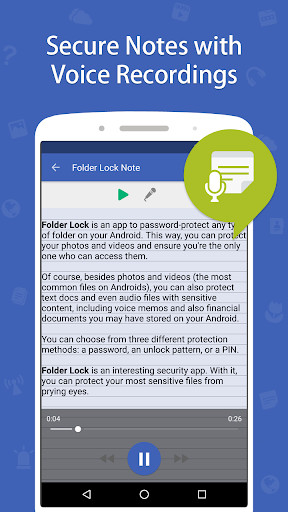
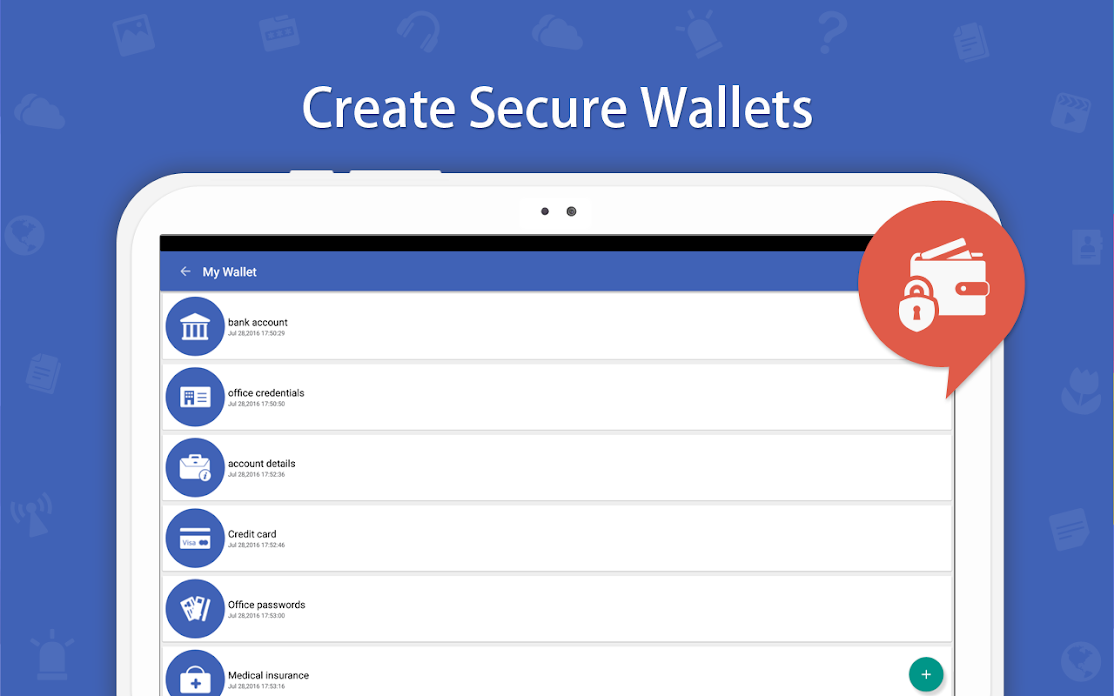
The supplied Android how-to material shows separate areas for text notes, saved credentials and structured wallet entries such as account or card information. These are in-app records rather than ordinary folders, so they complement the file vault instead of replacing it.
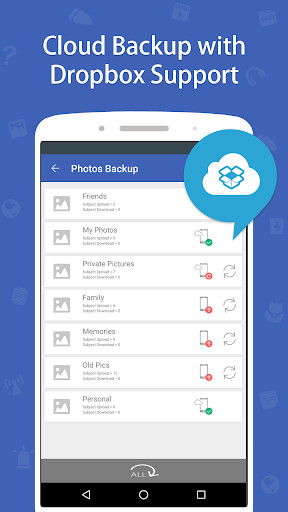
The product material describes encrypted backup to Dropbox, Google Drive and OneDrive and identifies AES-256 for this workflow. Treat that as protection for data managed through the app, not as a blanket encryption layer over every unrelated file already stored in those cloud accounts.
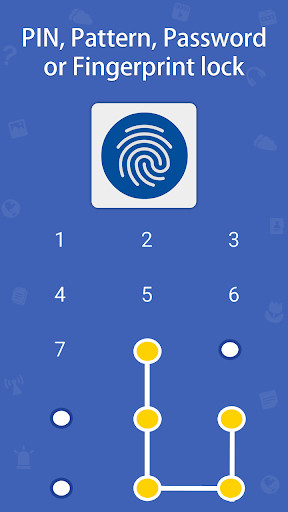
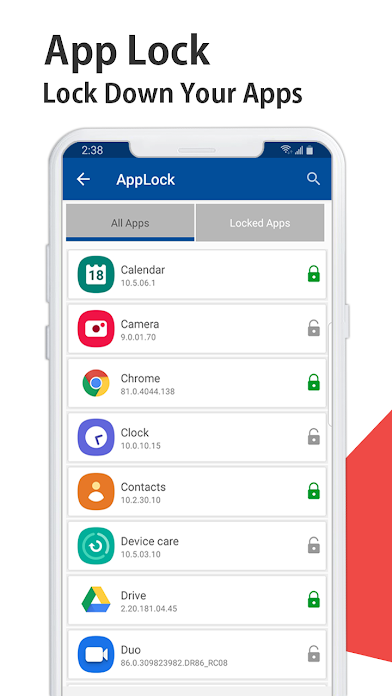
An app-locking function can place another authentication prompt in front of chosen apps. This is useful on a shared or frequently unlocked phone, but it should supplement rather than replace the device's main screen lock and Android security updates.
The app can keep a record of failed attempts to enter the protected environment. That can help you notice repeated access attempts, although a log is evidence after the attempt rather than a substitute for a strong password and secure device configuration.
The built-in browser is described as avoiding retained browsing history and cookies after use. It is an adjacent privacy feature, not a mechanism for encrypting normal Android folders, so use it only when that browsing model is relevant to your workflow.
The product notes describe decryption across supported platforms for the same user. This can matter if protected files move between devices, but this Android guide does not provide setup instructions for the desktop or iOS versions.
The supplied Android tutorials also cover importing contacts and creating private task lists. These features are useful for people who want more than file storage, but they are secondary to the page's core purpose of protecting folders and files on Android.
| Method | Difficulty | Security | Cost | Best for | Limitations |
|---|---|---|---|---|---|
| Normal file-manager folder | Very easy | Organization only | Free | Sorting files | No independent password protection |
| Hidden folder | Easy | Low | Free | Reducing casual visibility | Not a strong security boundary |
| Android Private Space where supported | Easy | Strong device-level separation | Built in | Private apps and their data | Availability varies by device |
| Files by Google Safe Folder | Easy | Good for selected files | Free where available | Files behind an extra lock | Recovery/reset can be consequential |
| Folder Lock for Android | Easy to moderate | Dedicated vault approach | Check official listing | Private media and documents in one app | Adds another app and recovery model to manage |
| Encrypted archive | Moderate | Can be strong with modern encryption | Varies | Files that must travel as one protected package | Less convenient for daily browsing on a phone |
These tools run entirely in your browser. They do not upload passwords or files.
Which setup matches your situation?
Jump to the part of the guide that matches your task.

Open Security & privacy and look for a private-space or secure-container option.
Create or confirm the authentication method required to enter the protected area.
Use a non-critical file first so you can learn whether the feature copies or moves the original.
Confirm the test file is no longer exposed through the ordinary browsing path.
Use the verified Google Play listing from NewSoftwares rather than a similarly named download from an unknown source.
The supplied setup flow uses an email address, a password and an email verification code before normal sign-in.
Enable the access required for the specific features you intend to use. File-vault and app-lock functions can require different permissions.
Open the relevant area for photos, video, audio or documents, then choose or create a destination collection inside the app.
Use the in-app add control, select the items from Android storage, then use the app's protection action to bring them into the secured area.
Open the protected item inside Folder Lock, close the vault, and then check the normal gallery or file location for any unprotected source copy you did not intend to keep.
Visible in ordinary browsing, easier to share by mistake, and potentially synced as a normal file.
Requires the protected area's authentication step and is separated from the ordinary browsing path when configured correctly.
This page does not provide non-Android setup instructions. The comparison below exists only to explain why a folder-lock workflow is platform-specific.

Android privacy can combine the device screen lock, app sandboxing, manufacturer secure containers, Private Space where available, file-specific safe folders, and third-party vault apps. The exact combination depends on the device.
Other mobile platforms use different protected-storage and app-isolation models. Treat those workflows as separate topics rather than assuming Android steps transfer directly.
Because privacy features can depend on both Android version and manufacturer software, use this as a decision matrix rather than a promise that a named menu exists on every phone.
| What to check | Older / customized Android | Newer Android with current privacy features | What to do if missing |
|---|---|---|---|
| Private system space | May be absent or manufacturer-specific | May expose Private Space or equivalent | Use Safe Folder or a trusted vault app |
| Protected individual files | May rely on file-manager or manufacturer features | Safe Folder may be available through Files by Google | Use a dedicated vault with clear recovery |
| App-level privacy | May be manufacturer-specific | Private-space and app-lock options vary | Use a reputable app-level lock only if needed |
| Removable SD card | A normal SD card folder is not automatically protected by the phone's folder name or hidden attribute. | Move sensitive data into a method that explicitly supports the storage path | |
Creating a folder on an SD card is easy, but password-protecting it is a different problem. A normal directory on removable storage can potentially be read outside the phone, so simply hiding it or changing its name is not a strong control.

If a vault app supports importing from SD storage, test with a non-critical file and verify whether the protected copy stays on the card, moves into app-controlled internal storage, or leaves an original behind. The most secure answer may be to keep sensitive material in protected internal storage rather than on removable media.

A lock describes the access experience, while encryption describes what happens to the underlying data. A folder can look hidden or require an app prompt without providing the same protection as cryptographic encryption. For Folder Lock's supplied Android material, AES-256 is specifically identified for the encrypted cloud-backup path.
An open password blocks access to a document itself. A permissions password controls actions after opening, such as editing or copying. These are document-format controls and should not be treated as a universal Android folder password.
The supplied Folder Lock material names Dropbox, Google Drive and OneDrive as backup destinations for encrypted app data. That does not mean every pre-existing file in those services is automatically protected, so distinguish the app-managed encrypted copy from ordinary cloud files.
The Android setup flow relies on an account and master credential. The supplied version history also notes an in-app account-deletion option. Before using deletion, reset, uninstall or storage-clearing actions, confirm what happens to local protected content and any cloud-backed copy.
1. Lock the Android device itself.
2. Put sensitive content behind a separate protected area when needed.
3. Use encrypted storage or export protection when files leave the device.
4. Track normal and cloud copies so private data is not duplicated outside the vault.
5. Keep account and recovery information secure.
If a file must leave your protected Android folder, the folder's app lock no longer protects the recipient's copy. For sensitive documents, use a file format that supports modern encryption or a secure sharing system with access controls, and send the password through a different channel from the file itself.
Before sharing, remove unnecessary metadata where appropriate, confirm that the shared copy is the intended version, and avoid public links that remain accessible indefinitely. For regulated or business data, follow the organization's retention, access-control, and approved-tool requirements rather than relying on a personal vault workflow.
Safe sharing checklist
1. Protect the file or use an approved secure link.
2. Send the password through a separate channel.
3. Limit who can access the shared copy.
4. Remove unnecessary metadata when appropriate.
5. Delete temporary unprotected exports after verification.For a folder or vault you own, start with the recovery mechanism provided by the operating system or application. Look for account-based recovery, a recovery key, a trusted-device flow, or official support tied to your license or account.
Do not use cracking tools, credential dumps, or bypass instructions. If the protected feature offers only a reset option, determine whether reset deletes the protected data before proceeding. When the files are irreplaceable, preserving the existing state is usually safer than experimenting with destructive fixes.
| Option | Separate lock | What it can protect | Cloud / portability | Extra app required | Editorial verdict |
|---|---|---|---|---|---|
| Folder Lock for Android | Yes, app controlled | Photos, video, documents, audio plus in-app private records | Supplied material describes encrypted cloud backup and cross-platform decryption | Yes | Good when you want one broader vault workflow instead of a single-purpose protected folder |
| Files by Google Safe Folder | Yes | Selected files | Primarily a local protected-file workflow | Files by Google may already be installed | Simple free route for a small number of files |
| Android Private Space | Can use a separate lock | Private apps and supported data | Device feature rather than a cross-platform vault | No separate vault app | Strong built-in choice where available |
| Manufacturer secure container | Usually | Depends on the phone maker's implementation | Usually tied to that manufacturer's ecosystem | No separate third-party app | Excellent if your phone provides a mature built-in option |
The supplied product comparison lists a no-cost option at $0 and a Pro option at $39.95. It also gives concrete capacity and device-sync limits. Because several rows in that same comparison refer to desktop-style functions such as portable lockers and file shredding, this Android guide does not present those desktop-oriented rows as Android capabilities.
These are representative scenarios, not customer testimonials.
Use a separate protected area for personal documents and photos, with a lock that other device users do not know.
Prefer an approved work profile or company-managed solution when policy requires it. A personal vault is not a substitute for enterprise controls.
Keep a protected copy for convenience, but maintain a separate secure backup so one forgotten password does not become a single point of failure.
Move the files into the protected area and verify that ordinary gallery and cloud-sync paths no longer expose the same originals.
Use a separate protected area for personal documents and photos, with a lock that other device users do not know.
Prefer an approved work profile or company-managed solution when policy requires it. A personal vault is not a substitute for enterprise controls.
Keep a protected copy for convenience, but maintain a separate secure backup so one forgotten password does not become a single point of failure.
Move the files into the protected area and verify that ordinary gallery and cloud-sync paths no longer expose the same originals.
Android does not expose one universal password button for every normal folder. Use a built-in private area when your device supports one, Files by Google Safe Folder for selected files, or a trusted vault app when you want a separate app-level lock.
Choose an app that protects the content itself, supports a strong app lock, explains recovery clearly, and comes from a publisher you can verify. Folder Lock for Android is one option when you want a dedicated vault rather than relying only on the phone's built-in privacy features.
Check Settings for a built-in private space or manufacturer secure container. Availability and names vary by device. If your phone does not provide one, a normal folder created in a file manager is organizational only and is not automatically password protected.
Most standard Android file managers do not attach an independent password to an ordinary folder. Create the folder for organization, then move sensitive files into a protected area such as Safe Folder, a built-in private container, or an encrypted vault.
On a compatible Galaxy device, Secure Folder provides a separate protected container for apps and files. The exact menu path can change by device and software version, so use the Secure Folder option exposed in Settings and confirm the files disappear from the normal location after moving them.
For photos, use a protected file area or vault rather than only hiding a normal directory. Move or import the photos, lock the protected area, then reopen the regular gallery to verify the originals are no longer visible there.
An SD card folder is not automatically protected just because it is hidden or renamed. For sensitive files, move them into a protected app or private area that explicitly supports the storage location, then verify what happens if the card is removed or read elsewhere.
Open the same protected feature or vault used to create it and authenticate with its PIN, password, pattern, or biometric option. Avoid moving protected application data manually with another file manager because that can break the vault's expected file structure.
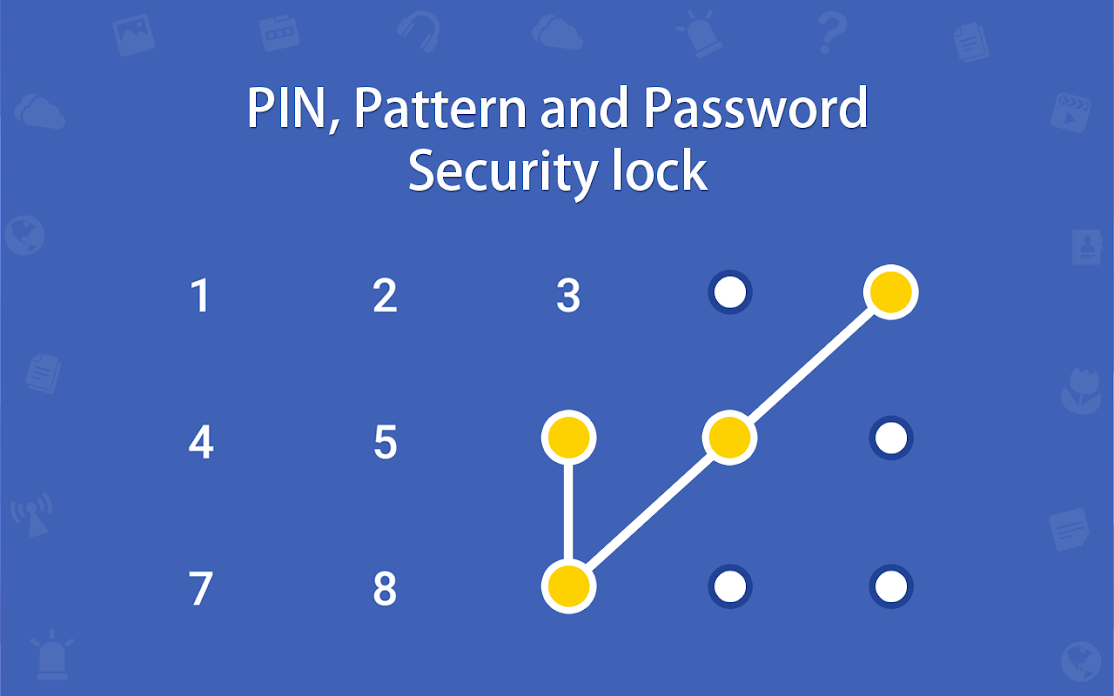
Use the recovery path provided by the feature or app you originally used. Check account-based recovery, saved recovery information, and the developer's official support. Do not reset or delete a protected space until you understand whether that action erases local protected data.
For meaningful privacy, prefer a protected container or encrypted vault with a separate lock, keep the phone itself updated and locked, avoid reusing your device PIN as the vault password, and verify that cloud backup does not leave an unprotected duplicate.
An open password is intended to stop a file from being opened without the secret. A permissions password usually controls actions such as editing or copying after the file is opened. These are document-level controls and are different from protecting a folder on Android.
No password mechanism is absolute. Risk depends on the encryption used, password quality, software implementation, device security, and whether an unprotected copy exists elsewhere. Strong encryption and a long unique passphrase make guessing attacks far less practical.
Not always. Some PDF password settings rely on encryption to protect content, while permission restrictions can be weaker because a compatible reader may enforce them differently. For sensitive files, check the encryption mode, not only whether a password prompt appears.
Open the document with the correct password in the application that created or manages the protection, then use that application's security settings to save an unprotected copy. Keep the protected original until you verify the new copy is complete.
Open your file manager, choose the storage location, use the New or Add control, select Folder, name it, and save. This creates an organizational folder only. Add a private-space, Safe Folder, or vault step if you also need access protection.
Yes. The supplied Android product material covers private media, documents and audio, plus in-app notes, password records, wallet entries, selected-app locking, access-attempt logging and a privacy-focused browser. Those extras are separate features around the vault rather than a single universal Android folder password.
The supplied product material describes encrypted backup to Dropbox, Google Drive and OneDrive and identifies AES-256 for that backup workflow. Check which copy is being backed up so you do not confuse an app-managed encrypted copy with an ordinary unprotected file already stored in the cloud.
The supplied comparison shows a Free option at $0 and a Pro option at $39.95, with 1 GB and 2-device sync on Free versus unlimited locker capacity and up to 5-device sync on Pro. Confirm the current Android purchase screen before buying because the supplied pricing is a research snapshot.

A hidden folder is mainly a visibility trick. It can be useful for reducing clutter or casual discovery, but it should not be your only control for sensitive documents, identity files, or private media.
If the goal is privacy rather than organization, create the hidden folder only as a staging area, then move important files into a protected space with authentication.
Start with a strong device screen lock, current security updates, app installs from trusted sources, and review of permissions and cloud backups. Then add a private folder or vault only for data that needs another boundary.
The extra folder lock is most useful when the phone is frequently unlocked around other people or when a single app stores especially sensitive files.
Offline availability and password protection solve different problems. Making a Drive folder or file available offline improves access without a connection; it does not automatically add a separate folder password.
If an offline copy is sensitive, verify how it is stored on the device and whether your chosen protected area can hold or import the file without leaving an exposed duplicate.
Length and uniqueness matter more than cosmetic complexity alone. A long passphrase that you have never used elsewhere is generally more resilient to guessing than a short password that merely swaps letters for symbols.
The encryption format matters too. A strong password cannot compensate for a weak or obsolete protection scheme, which is why the file's encryption mode should be checked for sensitive documents.
On Android, a protected folder or vault often makes more sense than adding a different password to many individual files. For files that must be exported and opened outside the vault, a modern encrypted archive can package multiple files under one strong passphrase.
Keep the original unprotected batch out of shared or auto-synced folders once you have verified the protected copy.
A password usually controls access at open time. DRM can impose broader policy such as device authorization, expiry, or usage rules. Those controls belong to managed content systems and are not the same as putting private files behind a folder lock on Android.
For business or regulated documents, use the organization's approved content-protection system instead of assuming a consumer vault satisfies compliance requirements.
For most Android users, the best first choice is still the privacy feature already built into the phone or Files by Google, because it avoids adding another account and permission set. The essential test is whether sensitive files really sit behind authentication and whether ordinary gallery, Downloads or cloud locations still expose duplicates.
Folder Lock becomes more compelling when you want one Android privacy hub for several file types and related private records. The supplied product material gives it a broader scope than a simple folder PIN: protected media and documents, private notes and wallet-style records, app locking, access-attempt logging, encrypted cloud backup and cross-platform support. That breadth is useful, but it also means you should review permissions, account recovery and backup behavior before trusting it with irreplaceable data.